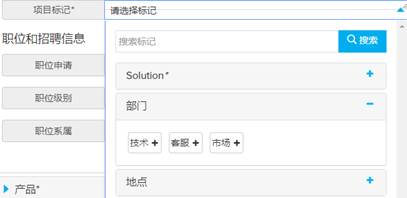
Project Tags
Project tags are important for keeping track of units used and to monitor the general activity on the platform. These could be structured as geographical locations, departments within a company, or company categories. Within a tag, you can then specify sub-categories called tag values. Examples of this could be:
Tag: Department
Tag values: HR, Marketing, Sales, Finance
Tag: Location
Tag values: Beijing, Shanghai, Shenzhen
You may also choose to have multiple tags with multiple tag values. Examples of this could be:
Tag: UK
Tag values: Sales, HR
Tag: France
Tag values: Sales, HR
Project Tags can be used as a filter when searching for projects, generating usage statements or analysing system wide information within dashboards.
Create a Tag
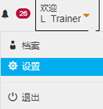
- Click the Welcome button then choose Settings.
-
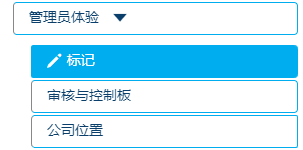
Click Admin Experience, then select Tags.
-
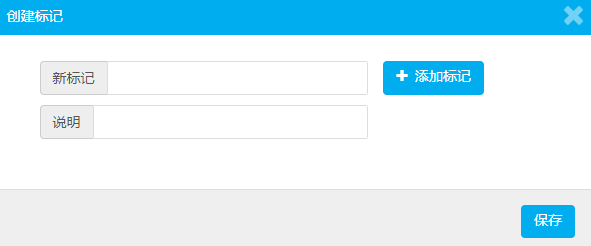
Select + New Tag, then enter a name and select Save.

Add Tag Value
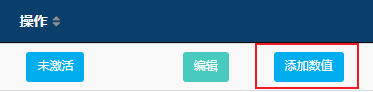
- To make use of the tag, find the tag and select Add value.
-
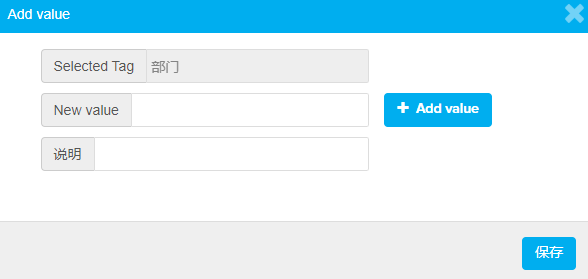
Enter the name, click +Add value (repeat this to create multiple values).
-
After all values have been added, select Save.
-
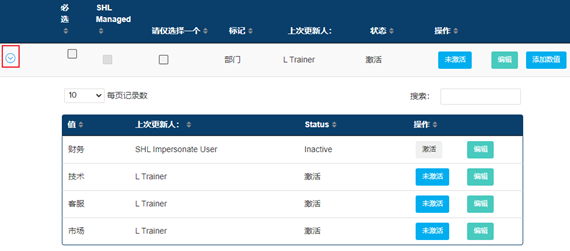
Click the arrow to display the list of tags (with options to Deactivate or Edit, if required).
-
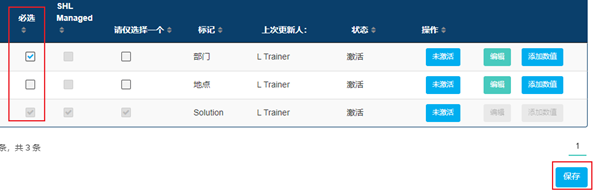
To make it compulsory for administrators to select a tag when creating a project, enable the required Tag and select Save.
-
The created tags and values will now be available for use when creating a project.