Manage User Group
Completion requirements
User Groups
User Groups allow a specific set of users to access a project that has been assigned to them. The level of access that has been assigned to a user will determine what actions they can perform within the project. Below are several examples of how the TalentCentral platform can be organised:
| Global / Multinational Sized Company | ||
|---|---|---|
| Example of Company Structure | User Roles | User Groups |
| The company is globally based, operating over multiple countries/regions. There may be national level leaders for each country/region. |
|
|
| National Sized Company | ||
| Example of Company Structure | User Roles | User Groups |
| The company is nationally based, operating over multiple regions/departments. There may be regional level leaders for each region/department. |
|
|
| Regional/Small Sized Company | ||
| Example of Company Structure | User Roles | User Groups |
| The company is small or regional based with one HR department. |
|
|
Create a User Group
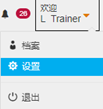
- Click the Welcome button then choose Settings.
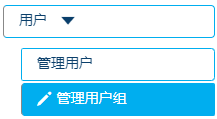
- Click Users in the company setting. Click Manage User Groups.
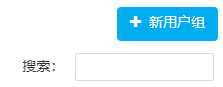
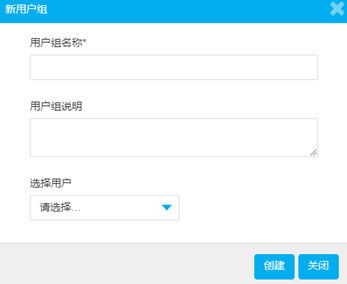
- Select +New User Group. Enter a Group Name; the Group Description is optional.
- The admin Users that will be part of the User Group can be determined under Select User.
- Once all fields have been completed, click Create.