Manage Users
Completion requirements
User Roles and Permissions
Administrator access on TalentCentral is controlled in 2 ways: by User Role and by User Group. User Roles control the tasks and actions that an administrator can perform whilst user groups control which projects an administrator can access.
There are five different permission levels that can be assigned to an admin user:
| User Roles | Access Level | Permissions |
|---|---|---|
| Supervisor or Proctor | Restricted access; Low number of users; Restricted Access to User Groups |
Can initiate supervised tests |
| Viewer | Read-Only access; Low number of users; Restricted Access to User Groups |
Can perform all the actions of a Supervisor;Can view Candidate Scores and Reports;Can act as an Interviewer/Evaluator |
| Manager | Medium access; High number of users; Restricted Access to User Groups |
Can perform all the actions of a Viewer;Can create, update and administer Projects;Can customize system emails |
| Company Admin | Advanced access; Low number of users; Restricted Access to User Groups |
Can perform all the actions of a Manager;Can create and update User Groups;Can change company level Settings |
| Company Super User | Full access; Low number of users; Unrestricted Access to User Groups |
Can perform all the actions of a Company Admin;Can see the User Groups they are not part of;Can see Projects they are not explicitly part of |
Create a New User
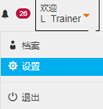
- Click the Welcome button then choose Settings.
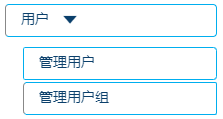
- Click Users in the company setting. Now select Manage Users.
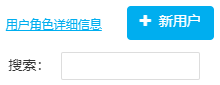
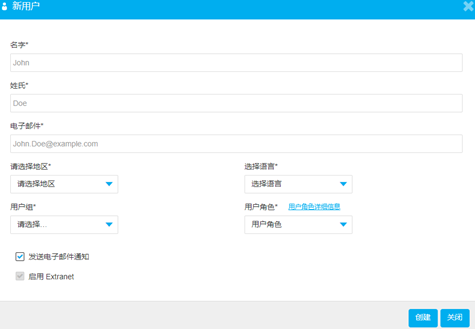
- Click + New User. Fill in the new administrator's details.
- Expand the User Group dropdown to choose a relevant group to which to add the administrator.
- Ensure the Send email notification is enabled before clicking on Create. This means that the new user will receive an email and will need to register within 24 hours.
- Once all fields have been completed, click Create.
TIPS:
User Role Details provides more information on each user permission.
If the Group does not exist, create one by following the steps in Create a User Group in the next section, then return to add the user.
Managing Users
Once a new admin user has been created some additional actions can be performed under the Managing Users section.
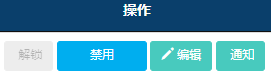
- Unlock will allow users whose accounts have been locked due to multiple incorrect password entries at login to log back in.
- Deactivate will disable the user’s account and prevent them from accessing TalentCentral™ as administrators.
- From Edit, any User’s information can be changed/updated (this includes changing user roles/groups).
- Notification will resend the notification to the user, allowing them to register and access TalentCentral™.