Download reports of Single Candidates
Completion requirements
Viewing Reports Onscreen
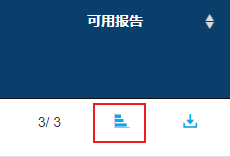
- Click the bar chart icon under Available reports to preview candidate results onscreen.
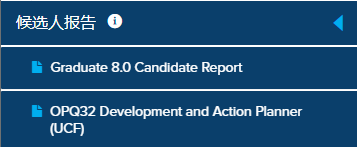
- Select required report from left column to display onscreen report.
- Click options on the top right of the screen to Export Full report or Onscreen Report.
- If your report is competency based, you will see additional options to select competencies that are relevant.
- The report with tailored competencies can be Viewed and Exported.

Download Report
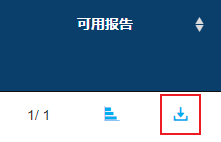
- Click the download icon to download a specific candidate’s report(s) in .pdf format.
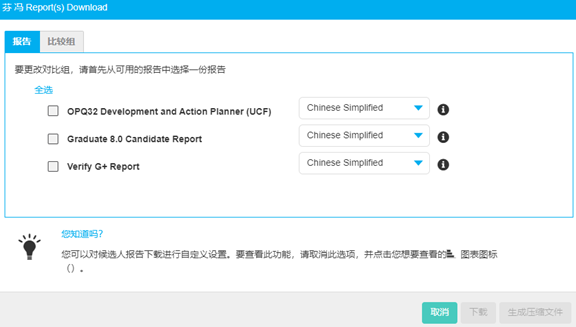
- Select one or more of the available reports. Use the dropdown to choose the language of the report. You will not be charged when you change the language.
- Use the Comparison Group to generate report with a different comparison group. If the report is included in the assessment, you will not be charge for changing the comparison group. If the report is a seperate product(e.g. OPQ reports, MQ reports), you will be charged again.
- Click Download (in case of multiple reports, results are made available in a zip file) . The report should download to your device.