
Add More Products
This page will show you how to add an additional assessment or report to an existing project. You can either add a product for all candidates on the project (known as a Core Product) or add a product for only selected candidates (known as an Additional Product).You may need to do this if you want one or more of your candidates to take an additional assessment, or if you have forgotten to add a report before sending out the invites.Click here to watch tutorial video.
Adding a Product for all Candidates
- Select the desired project and expand the Products* section. Click Select Manually.
- Search for the desired report/assessment.
- Input or select the required information and click Add.
- A pop-up will appear to select how to assign the assessment/report:
- Core will automatically assign the selected product to all candidates on the project.
- Additional will assign the product to selected candidates.
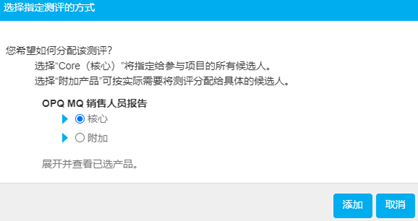
- Choose Core and click Update Project.
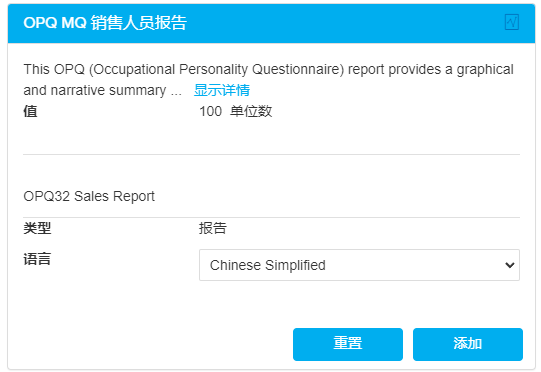

Has the product been added as Core?
If the added product is an assessment, the candidate will automatically receive an email informing them of the new assessment.
If the added product is a report, this will now be available on the reports page for all candidates who have completed.
Adding a Product for Selected Candidates
- Expand the Manage Candidates section on the project.
- Find the candidate(s). Tick the box on the left-hand side of the candidate’s name.
- Click Add Product.
- The Product section will automatically expand. Click Select Manually and search for the report/assessment that you need to assign.
- Core will automatically assign the product to all candidates on the project.
- Additional will assign the product to selected candidates.
- Choose additional and click Update Project.

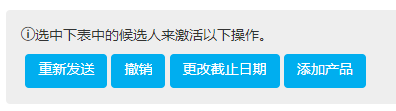
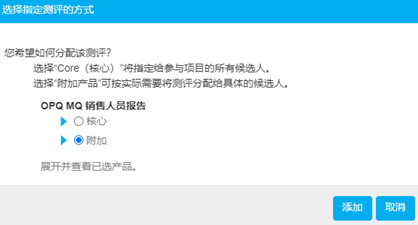
Has the product been added as Additional?
If the added product is an assessment, proceed to the Manage Candidates* section on the project. Tick the box adjacent to the candidate’s name, find the product that was added, and click Invite. The candidate will receive an invite to complete the assessment.
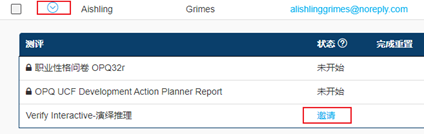
If the added product is a report, proceed to the Manage Candidates* section on the project. Tick the box adjacent to the candidate’s name, find the product that was added, and click Invite. The report will now be available on the reports page.