Add Candidates
Completion requirements
Use one or more of the four methods for adding candidates:
| scenario | methods | emails | |
|---|---|---|---|
| Add Individual Candidates |
|
Add candidates one by one. | Invitation emails will be sent from TalentCentral. Can be used when inviting candidates to a Live Video Interview. |
| Bulk Import |
|
Candidate details are added to a spreadsheet and imported. | Invitation emails will be sent from TalentCentral. Can be used when inviting candidates to a Live Video Interview. |
| Single-use links |
|
Candidates will self-register their details prior to completing the assessment using different links. | The unique link will not be sent to candidates via TalentCentral, and the administrator is responsible for distributing them. |
| Multi-use links |
|
Multiple Candidates will self-register for the assessments using one link. |
The URL will not be sent to candidates via TalentCentral, and the administrator is responsible for distributing it. |
Adding Individual Candidates
Use this method to directly invite candidates from Talent Central using their first name, last name, email address and selecting the language in which the invite is to be sent .

Bulk Import
Use Bulk Import to add/invite large volumes of candidates.
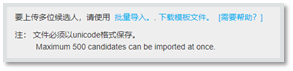
- Download a template file and fill in the five columns on the spreadsheet (Title, First Name, Last Name, Email address and Language Code).
- Save the file in a Unicode text format (e.g. CSV format).
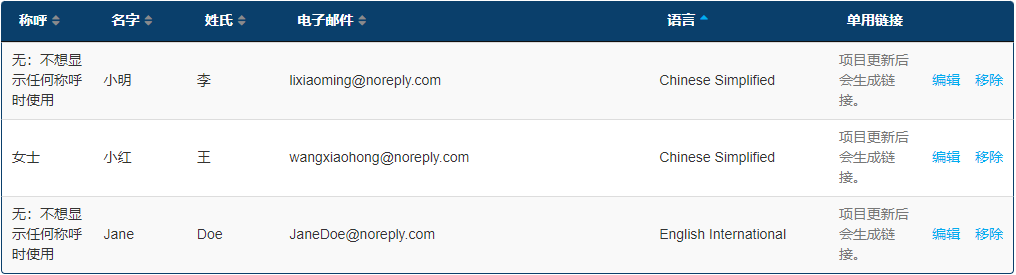
- Upload file by selecting Bulk Import function. Candidates will instantly appear at the bottom of the section header. Invitation email will be sent to them when project is published.
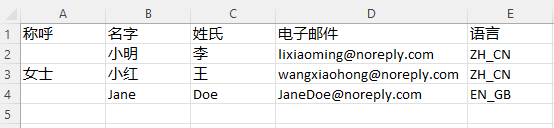
TIPS: Click Need help? icon to view the language codes for the language that need to be inserted in the file. This is the language in which the candidate invite will be sent from TalentCentral.
Single-use links
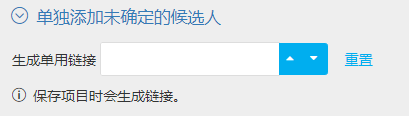
- Click Add Individual unknown candidates
- Single-use links can be created by indicating the number of individual links needed. The single use links will be generated when the project is created.
- Once project is published, export links from Manage Candidates section and distribute individually to candidates via email.
Multi-use links
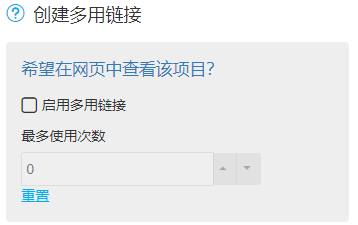
- Select the Enable Multiple Use Link check box.
- Multi-use links can be created by determining the expected number of uses for the link. The Multiple Use Link will be generated when the project is created.
- Once the project is Created, the link can be copied from Add Candidates section.